
WordPress Plugin
Marklane
Marklane lets you publish and update Markdown in WordPress. Images, Mermaid diagrams, math, and notices in the body are reflected in the post from the Markdown, and publishing settings can be configured together in Front Matter.

FEATURES
Features
Import Markdown as a post
Upload a `.md` file from the WordPress admin, or select one from the Media Library, and import it as a post.
Review with Dry Run
Before saving, review whether the import will create or update a post, which post was matched, and how images and taxonomies will be handled.
Update existing posts
Existing posts can be matched and updated by `slug + post_type`. When Polylang is active, the language code is included in the match.
Match images to the Media Library
Images stored alongside the Markdown source can be matched to Media Library items. `featuredImage` follows the same rule, and external URLs can be used when FIFU is active.
Link multilingual posts with Polylang
Set `lang` and `translations` in Front Matter to define relationships between posts in different languages.
Set taxonomies and publication dates
Categories, tags, existing custom taxonomies, scheduled dates, and past publication dates can be set in Front Matter.
Display diagrams, math, and notices
Mermaid diagrams, `$$...$$` math blocks, GitHub-style alerts, and Zenn-style messages can be reflected on published pages from Markdown. Required scripts and styles load only on pages that use those features.
Import without Front Matter
When Front Matter is omitted, Marklane can derive the title from the first H1 and the slug from the filename, then import a draft.
WHY
When to use it
You want to publish Markdown in WordPress
You can reduce the work of moving between a Markdown editor and the WordPress editor to rebuild headings, images, and publishing details. Create a post from Markdown without opening the WordPress editor.
You want to handle Markdown and images together
Relative image paths in the body and featured images can be matched to existing Media Library items.
You want to publish multilingual posts together
When Polylang is active, Front Matter `lang` and `translations` fields can define translation relationships.
You want to publish articles with diagrams and math
Mermaid diagrams, `$$...$$` math, and notices such as `[!NOTE]` can be reflected on the published page from the Markdown.
SCREENSHOT
Admin screen
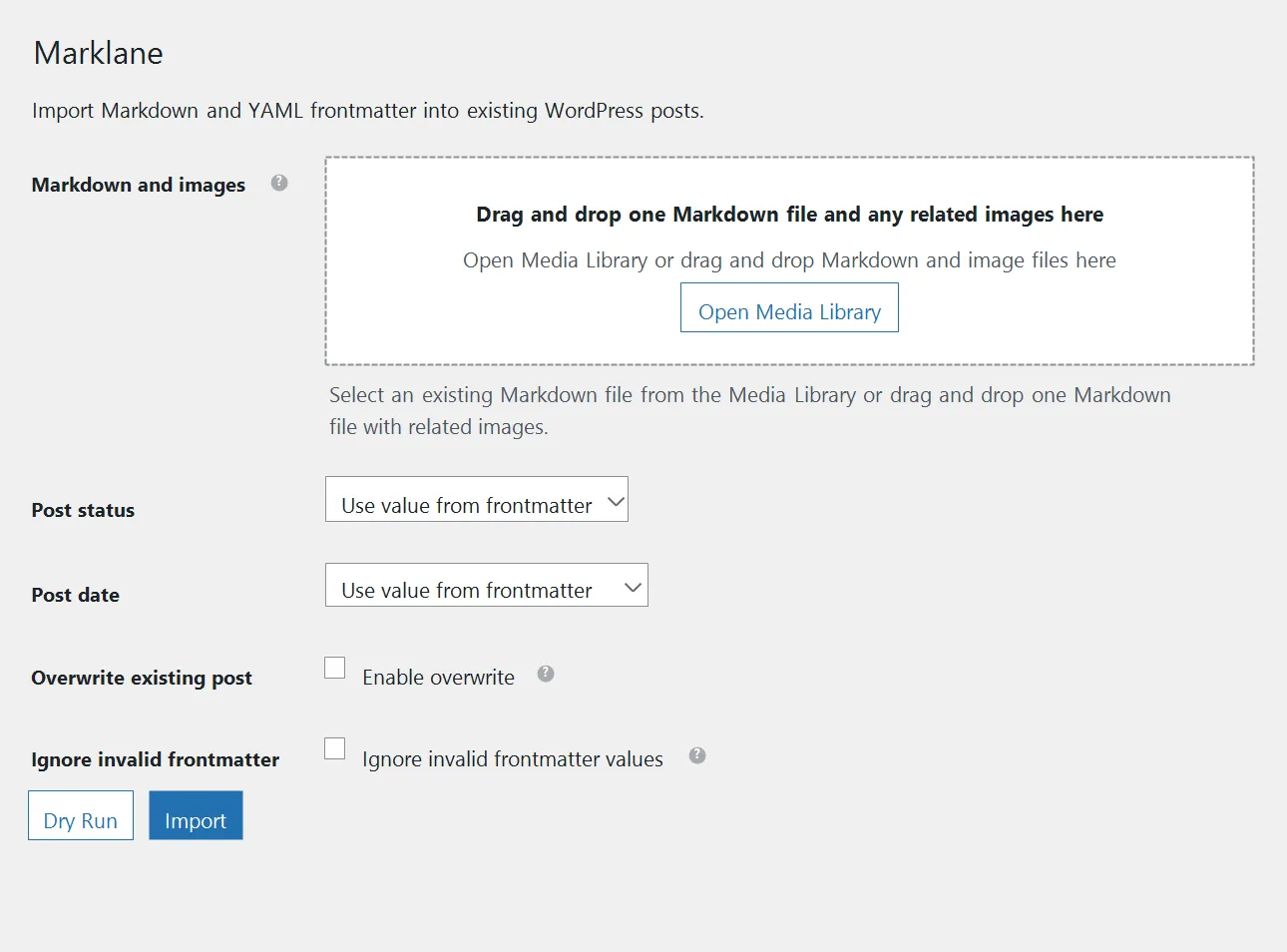
EXAMPLES
Support for extended Markdown syntax
These examples show how Markdown for Mermaid diagrams, math, and notices appears on the published page. Required scripts and styles load only on pages that use those features.
| Syntax | Markdown | Published page |
|---|---|---|
MermaidDisplay diagrams written with Mermaid syntax. | Markdown | Published page Write MarkdownImport with MarklanePublish in WordPress |
GitHub-style noticeDisplay GitHub-style notices. | Markdown | Published page Note |
Zenn-style messageDisplay Zenn-style messages as notices. | Markdown | Published page Warning |
MathDisplay math wrapped in `$$...$$`. | Markdown | Published page |
STYLING
Adjust appearance with CSS variables
Marklane adds CSS classes to callouts, Mermaid diagrams, and math blocks, so your theme can override their spacing and presentation.
Adjust callout colors
Set one base color for each type and Marklane derives its background and border colors automatically. You only need to define the types you want to change.
:root {
  --marklane-callout-color-note: #3858e9;
  --marklane-callout-color-tip: #007a1c;
  --marklane-callout-color-info: #006ba1;
  --marklane-callout-color-important: #8250df;
  --marklane-callout-color-warning: #996800;
  --marklane-callout-color-caution: #b32d2e;
  --marklane-callout-color-danger: #b32d2e;
}
CSS class reference
The table lists the classes for non-color styling, along with their default CSS values and usage.
In browsers that support color-mix(), callout backgrounds and borders are generated from each color variable. The background and border colors in the table are the fallbacks used when it is not supported.
| CSS class | Default CSS value | Description |
|---|---|---|
.marklane-callout | margin: 1.25em 0; padding: 0.85em 1em; border: 1px solid var(--marklane-callout-border-color); border-left: 5px solid var(--marklane-callout-color); border-radius: 4px; background: var(--marklane-callout-background); | Used for the entire callout block |
.marklane-callout__title | margin: 0 0 0.45em; font-weight: 700; color: var(--marklane-callout-color); | Used for the callout title |
.marklane-callout-note | --marklane-callout-color: var(--marklane-callout-color-note, #3858e9); | Identifies Note callouts and switches their color |
.marklane-callout-tip | --marklane-callout-color: var(--marklane-callout-color-tip, #007a1c); --marklane-callout-background: #edf8f0; --marklane-callout-border-color: #abd9b5; | Identifies Tip callouts and switches their color |
.marklane-callout-info | --marklane-callout-color: var(--marklane-callout-color-info, #006ba1); --marklane-callout-background: #edf8ff; --marklane-callout-border-color: #add9ed; | Identifies Info callouts and switches their color |
.marklane-callout-important | --marklane-callout-color: var(--marklane-callout-color-important, #8250df); --marklane-callout-background: #f6f2ff; --marklane-callout-border-color: #d7c4f5; | Identifies Important callouts and switches their color |
.marklane-callout-warning | --marklane-callout-color: var(--marklane-callout-color-warning, #996800); --marklane-callout-background: #fff8e5; --marklane-callout-border-color: #efd287; | Identifies Warning callouts and switches their color |
.marklane-callout-caution | --marklane-callout-color: var(--marklane-callout-color-caution, #b32d2e); --marklane-callout-background: #fcf0f1; --marklane-callout-border-color: #efb5b6; | Identifies Caution callouts and switches their color |
.marklane-callout-danger | --marklane-callout-color: var(--marklane-callout-color-danger, #b32d2e); --marklane-callout-background: #fbeaea; --marklane-callout-border-color: #e5a6a7; | Identifies Danger callouts and switches their color |
.marklane-details | margin: 1.25em 0; overflow: hidden; border: 1px solid #dcdcde; border-radius: 4px; background: #fff; | Used for the entire collapsible block |
.marklane-details__summary | padding: 0.75em 1em; font-weight: 700; cursor: pointer; background: #f6f7f7; | Used for the collapsible block heading |
.marklane-details__content | padding: 0.85em 1em; border-top: 1px solid #dcdcde; | Used for the collapsible block content area |
.marklane-rendered-block | None (shared class) | Shared by converted blocks such as Mermaid and math |
.marklane-mermaid | None (rendered by Mermaid) | Used for the Mermaid diagram area |
.marklane-math | None (rendered as math) | Used for inline math rendering |
.marklane-math-display | margin: 1.25em 0; overflow-x: auto; overflow-y: hidden; | Used for the display-math area |
ENVIRONMENT
Requirements
WordPress
5.6 or later
PHP
8.0 or later
FRONTMATTER
What you can set with Front Matter
Add Front Matter to the beginning of your Markdown file to define WordPress publishing settings. Titles, slugs, taxonomies, language information, and other post settings can be applied together without opening the WordPress editor.
Required fields
`title` and `slug` can be supplied in frontmatter, but Marklane can derive them from the first H1 and filename when they are omitted.
Basic post settings
`postType`, `status`, and `excerpt` can be used for post type, publication status, and excerpts.
Taxonomies and featured image
`category` and `tags` can assign taxonomy terms. `featuredImage` accepts either a Media Library URL or a relative path from the Markdown file.
Multilingual fields
`lang` defines the post language, and `translations` points to the slugs of related posts in other languages.
YAML Front Matter example
---
title: "Moonlit Garden Notes" # Optional / post title
slug: "moonlit-garden-notes" # Optional / base slug for the post URL
postType: "post" # Optional / post type
featuredImage: "./hero.jpg" # Optional / featured image
lang: "en" # Optional / Polylang post language
translations:
ja: "yoru-no-niwa-no-kansatsu-kiroku" # Optional / related Japanese post slug
category:
- "journal" # Optional / category taxonomy
- "garden"
tags:
- "seasonal-notes" # Optional / post_tag taxonomy
- "greenhouse"
excerpt: "A short note from a weekend walk through the greenhouse and garden." # Optional / excerpt
status: "draft" # Optional / post status
---
Front Matter keeps post settings close to the Markdown source. If Front Matter is omitted, Marklane can still create a draft from the filename and first H1.
INSTALLATION
Installation
- In the WordPress admin, go to `Plugins > Add New` and search for `Marklane`.
- Activate `Marklane`.
- Open `Tools > Marklane` and upload a Markdown file or select one from the Media Library.
- Run Dry Run to preview the result, then run Import to create or update the post.
For manual installation, upload the plugin folder to `/wp-content/plugins/` and activate it from the WordPress `Plugins` screen.
FAQ
Common questions
How does it decide whether to update an existing post?
It matches existing posts by `slug + post_type`, or by `slug + post_type + lang` when Polylang is active.
What does Dry Run show?
Dry Run shows whether the import will create or update a post, which post was matched, how taxonomies and images will be handled, and whether any warnings or errors were raised.
Which frontmatter fields are required?
`title` and `slug` can be set explicitly, but they can also be derived from the first H1 and filename. Fields such as `postType`, `status`, and `category` can be added as needed.
Can it update existing posts?
Yes. It looks up existing posts by `slug + post_type`, or by `slug + post_type + lang` when Polylang is active.
Does it import images into WordPress automatically?
No. Relative image paths are resolved against Media Library attachments. Supporting images uploaded together are stored as flat Media Library files, so nested paths such as `images/foo.jpg` are not recreated.
Can I use an external URL for `featuredImage`?
Yes, when FIFU is active. Without FIFU, `featuredImage` must resolve to an existing Media Library attachment.
Can it import multiple files at once?
Not at the moment. The current workflow is built around importing one `.md` file at a time.
Can it render Mermaid diagrams?
Yes. When the setting is enabled in `Tools > Marklane`, Marklane loads the scripts needed to display diagrams only on published pages that contain `language-mermaid` code blocks. The stored content remains a normal Markdown code block.
Can it render math and notices?
Yes. `$$...$$` math blocks, GitHub-style alerts, and Zenn-style messages can be displayed through optional settings. `:::details` becomes a native collapsible section without JavaScript. The required scripts and styles are loaded only on pages that use those features.
Can I enable compatibility behavior for Japanese strong emphasis?
Yes. Strict CommonMark behavior is the default, but a compatibility preprocessing filter can be enabled for Japanese writing patterns such as `**「text」**continued`.
NOTES
Notes
- Use unique filenames for Markdown files and image assets to avoid ambiguous image mapping.
- If you use relative image paths, the matching images need to be registered in the Media Library first.
- For predictable image matching, disabling WordPress year/month upload folders is recommended.
CHANGELOG
Recent changes
1.7.0
- Strengthen Markdown upload UTF-8 and MIME validation, and scope Markdown MIME handling to the admin import workflow.
- Improve post, image, and Markdown attachment lookup performance for large media libraries with bounded queries and hash-first reuse.
- Combine the source hash with an import fingerprint so output-affecting setting changes trigger the required re-import.
- Improve rollback of newly created posts and unused taxonomy terms when persistence fails partway through an import.
1.6.4
- Improve existing-post matching and restoration during re-imports.
- Strengthen validation when resolving supplementary images and media.
1.6.3
- Improve script loading reliability.
- Improve Mermaid and math rendering reliability.
- Strengthen permission checks during imports.
- Strengthen relative image path validation.
LINKS
Related links
- WordPress.org plugin directoryCheck installation steps, recent changes, and plugin details.
- Recent changesReview changes by version.
- ContactContact us with questions about using the plugin.