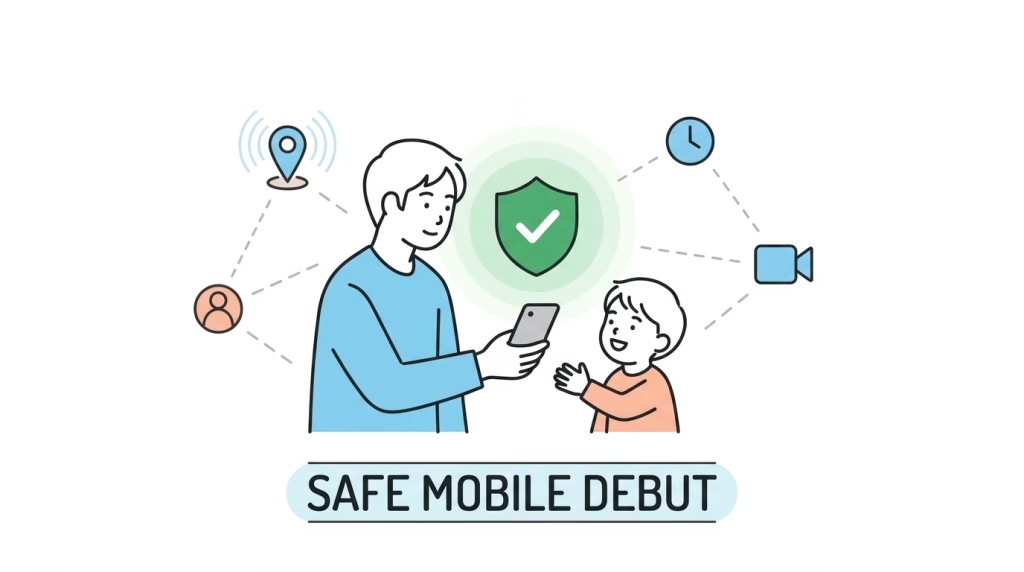
As our children start elementary school and begin navigating the world more independently, finding a way to stay in touch becomes a major point of anxiety for many parents.
"Is it too early for a smartphone? But how else can I ensure their safety?"
I found myself in this exact dilemma. After weighing several options, I landed on a solution that balances cost, safety, and long-term digital education. Here is the process and the setup I chose for my 6-year-old (1st grader), which I hope serves as a helpful reference for other families.
Technical Candidates: Apple Watch, GPS Trackers, or Kids' Phones?
Initially, I looked into the Apple Watch (Cellular model), dedicated GPS trackers, and Kids' Phones (simplified handsets from major carriers).
These options are physically secure and designed to minimize online risks. However, as I dug deeper, several practical concerns surfaced that I couldn't ignore.
Concerns with each device
- Apple Watch
Initial setup and management require an iPhone (a high hurdle for Android users). Active cellular tracking can also drain the battery, sometimes failing to last a full day. - GPS Trackers & Kids' Phones
Paying a monthly fee of ¥500–¥1,000 for a device that "only does one thing" felt inefficient. Also, Kids' Phones often require parents to be on a major carrier, which was a deal-breaker for us as MVNO users.
Comparison (First-Year Costs)
| Item | Apple Watch(Cellular) | GPS Tracker | Kids' Phone |
|---|---|---|---|
| Device Price | From ~¥34,800 | ~¥5,200–8,000 | ~¥20,000–25,000 |
| Monthly Fee | ~¥385–550 | ~¥528–748 | ~¥550–1,500 |
| Battery life | ~1 day | Several days–2 weeks | Several days |
| Merits | Wrist-worn, iPhone sync | Simple and focused | Durable, child-safe |
| Demerits | Short battery, iPhone req | Limited features | Carrier dependent |
Ultimately, I realized these were just temporary "stop-gaps." A smartphone is an inevitable tool they'll need anyway. I decided it was better to introduce one now and use it as a training tool for digital literacy while they are still under our close supervision.
Deciding on a Smartphone: Why Android is the way to start
I decided on a full smartphone for better tracking reliability and future scalability.
Crucially, I chose Android over iPhone. While I am an Android user myself, the real reason is Google Family Link. Its restriction features—like hiding specific apps or enforcing remote device locks—are significantly more robust on Android.
Given the risk of a child accidentally (or intentionally) bypassing simple restrictions, an Android phone was the only pragmatical choice for a secure, controlled start.
(I suspect one day I'll hear, "I want an iPhone like everyone else!" but for now, we are focused on establishing a safe foundation.)
Finding the Best Carrier: The Rakuten Mobile Pivot
Once the hardware path was clear, I looked for a carrier. Initially, I considered a cheap IIJmio eSIM plan (¥440/month).
However, I hit a snag: the older phone I planned to reuse did not support eSIM technology. After exploring physical SIM options like povo 2.0, I eventually found Rakuten Mobile's "Saikyo Kodomo Wari" (Strongest Kids Discount).
- Effective ¥528/month
3GB of data for this price is incredibly competitive. - ¥1 JPY Device Program
I was able to get a nubia S2R for ¥1 during an in-store contract campaign (at the time of writing). - Rakuten Points
For families already in the Rakuten ecosystem, the point rewards make the net cost even lower.
Choosing a new, cheap device over an old, struggling one turned out to be the most balanced strategy.
Communication Strategy: JusTalk Kids Android Messages instead of LINE
For a 6-year-old, LINE was a no-go. The age rating (12+) and the risks of unwanted contacts or mobile addiction were too high. Instead, we split communication into two safe channels:
- Voice Calls via Rakuten Link
Calls from the child to me are completely free on Rakuten Mobile. - Messaging & Video via
"JusTalk Kids""Android Messages"This app is a gem. Children can only connect with contacts approved by parents. It's the perfect "walled garden" for learning digital manners.
Previously, we introduced the dedicated "JusTalk Kids" app, but we have now switched to the standard "Android Messages" (Google Messages).
With the standard support for RCS (Rich Communication Services), messages and group chats can be sent for free without paying SMS fees, and photos or videos can be shared just like using LINE.
Furthermore, Google Family Link allows us to detailedly control app-specific restrictions, enabling precise management of screen time and access permissions while ensuring safe and secure messaging.
The Philosophy: "Start Strict, Loosen Later"
We use Google Family Link as a technical safety net to enforce boundaries from day one:
- Minimal Home Screen
Only essential communication apps are visible. - Approval-Only Apps
I approve every single app installation request. - Forced Screen Time Limits
The phone locks automatically, making technology the "bad guy" instead of me.
Our policy is to "start with a strict technical safety net and allow freedom within those boundaries." We plan to "loosen the screws" (grant more autonomy) as the child demonstrates better self-regulation.
Summary: Training for a Digital World
This debut taught us the importance of separating device potential from operational rigor.
Instead of fearing smartphones, we chose to use them as a tool for guidance. Letting them handle a powerful tool in a controlled environment is, I believe, the best way to foster a healthy relationship with technology.
I hope our case study provides a useful perspective for other families facing the same decisions!