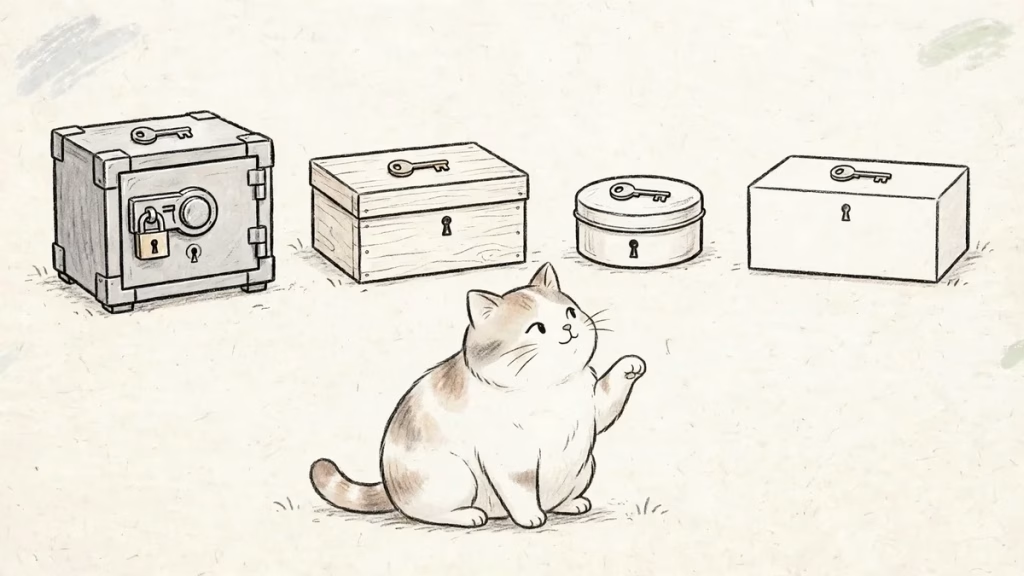
Whenever I read about another data breach or unauthorized access incident, I think about how I manage my passwords.
Even if a service does everything right, reusing a password can turn one compromised account into several.
I used to rely on LastPass, but I switched to Bitwarden and have been very happy with it.
LastPass's shrinking free plan and its security incidents played a part, but being able to use Bitwarden across different devices is probably what I appreciate most.
Google, Apple, and Microsoft all offer built-in password management, though.
If those tools are free and convenient, is a separate password manager really worth using?
Here's how I look at the options, personal preferences included.
Plan details and platform support are based on information available in November 2026 and may change.
How to manage your passwords in the first place
| Method | Where it makes sense | Main drawback |
|---|---|---|
| Memorizing them | A few important passphrases | Hard to remember a unique, lengthy password for every account |
| Writing them on paper | Offline emergency recovery codes | Loss, exposure, and inconvenient updates |
| Notes or spreadsheets | A small collection you control yourself | You must handle encryption, backups, and syncing |
| OS or browser tools | Quick setup and built-in autofill | Platform and browser dependencies |
| Dedicated password manager | Multiple browsers and devices | The vault and its recovery options need protection |
Paper is not automatically insecure, and the cloud is not automatically safe. Still, personally, I strongly advise against keeping your everyday passwords on paper.
It can get lost, someone else can read it, and updating dozens of entries is a nuisance.
With so many online accounts, managing unique passwords this way seems hopelessly impractical.
Keeping emergency recovery codes on paper in a secure offline location is a different matter.
I treat recovery material and everyday login credentials separately.
Built-in password managers are better than I expected
Google Password Manager in Chrome, Apple's Passwords app, and Microsoft Edge's password features are all easy starting points.
You already have the associated account or device, so there's less to set up.
Something I found surprising while researching this: browser-related password tools can work beyond the browser.
Google Password Manager can fill credentials in Android apps, and Chrome can be selected as an autofill provider on iOS.
Apple's Passwords works across Apple devices, with iCloud Passwords also offering ways to use saved credentials on Windows.
That doesn't mean every Windows desktop app or alternative browser gets an equally smooth experience.
A supported-OS list doesn't tell the whole story.
Despite the convenience, I don't particularly want to use these built-in tools.
I already depend on Google, Apple, and Microsoft for enough things. Handing over my password vault too feels uncomfortable.
I also dislike the idea of leaving password saving and syncing to the OS or browser, and I don't want to rethink my password setup every time I change either one.
I'd rather keep my credentials somewhere independent.
- Google Password Manager
- Using saved passwords on iPhone and iPad
- Apple Passwords
- Microsoft Edge support
Comparing dedicated password managers
Here are the options I'd put on the shortlist.
| Service | Free option | Notable characteristics | Best fit |
|---|---|---|---|
| Bitwarden | Yes | Open source, cross-device sync, browser extensions and apps | People who want to move between platforms on a free plan |
| 1Password | Primarily paid | Secret Key design, family and team features | People willing to pay for its experience and sharing tools |
| Proton Pass | Yes | Multiple devices, passkeys, email aliases | People who value privacy and email address separation |
| KeePassXC | Yes | Locally managed encrypted database | People who prefer to control their own storage and syncing |
| LastPass | Yes, one device category | Established cloud password manager | Existing users comfortable with its plan limits |
One important distinction: having a desktop application does not necessarily mean it can autofill credentials into every other desktop application.
For me, how well a manager works with the apps I use matters more than the mere presence of a Windows or macOS download.
Bitwarden and Proton Pass for free cross-device use
Bitwarden's free plan supports multiple devices, browser extensions, and mobile apps.
Proton Pass also offers a free tier without a device-count limit, and its email alias features are especially interesting.
I'm happy enough with Bitwarden that I don't plan to switch to Proton Pass.
There's little point in constantly searching for a replacement when the current tool works well.
Bitwarden is open source, and it can share selected logins
Bitwarden makes its source code publicly available, which I appreciate in a tool that handles such sensitive information.
It also undergoes third-party security audits.
Another neat feature is sharing through organizations and collections.
Even on the free plan, two people can share selected credentials while keeping their personal vaults separate.
There are permissions to hide the password value from the other person's interface, although that does not technically guarantee they can never retrieve it.
I haven't used this feature myself yet, but it sounds useful for a household or a very small team.
KeePassXC if you prefer local storage
KeePassXC puts you in charge of the encrypted database file.
You don't need to entrust the vault to a cloud password manager, but syncing, backups, and account recovery become your responsibility.
1Password if you're willing to pay
1Password is mainly a paid service.
Its Secret Key approach and family and team features are worth considering rather than judging it on price alone.
Why I left LastPass for Bitwarden
The biggest trigger was LastPass limiting its free users to either the desktop or mobile device category.
I wanted a password manager precisely because I use both my PC and phone. That restriction made the free plan much less useful to me.
Then came the 2022 security incident.
LastPass disclosed that attackers obtained data including backups of encrypted customer vaults.
Encryption matters, of course, and the incident does not mean each password was immediately decrypted. But having backups of password vaults taken from a password-management provider was enough to undermine my confidence.
Even before that, LastPass didn't feel like it was improving very much when I used it, including its interface.
Changes in its corporate ownership also left me uneasy about its long-term direction.
It had been a useful service, so that was disappointing.
Moving to Bitwarden made it easy to work with the same vault across different devices and beyond the browser, while the free offering covered what I needed.
A password manager tends to become a long-term fixture.
That's why I care whether it feels actively maintained, not just whether today's feature list looks good.
Will passkeys make password managers obsolete?
Passkeys use public-key cryptography and are designed to resist phishing better than conventional passwords.
But plenty of services still need passwords, so I don't expect to abandon my vault just yet.
The interesting question is increasingly where passwords and passkeys are stored, how they're recovered, and how to use them across devices.
I wasn't initially keen on passkeys because I dislike tying my credentials to an individual device.
When a service requires a passkey, I save it in Bitwarden instead.
Being able to use the same passkey on multiple devices through Bitwarden has turned out to be convenient.
A few habits matter regardless of the tool
Even the best password manager won't help much if its master password is weak or the device itself is compromised.
- Generate a unique, lengthy password for every service.
- Use a strong, memorable passphrase for the vault.
- Turn on multifactor authentication for the manager.
- Keep emergency recovery codes securely outside the vault.
- Treat unencrypted exports as sensitive files and clean them up carefully.
- Know how you'll recover access or migrate to a different tool.
Storing two-factor authentication codes in the same vault is convenient, but a compromise of that vault could expose both factors.
For particularly sensitive accounts, I would consider a separate authenticator or a security key.
I want a tool I can keep using — and leave when I need to
For people who mostly use Chrome and Android, Google's built-in features make sense.
Apple's Passwords app can be equally compelling in an Apple-centric setup.
If you move between operating systems and browsers, Bitwarden or Proton Pass is worth considering.
1Password deserves a look for paid family and team features, while KeePassXC suits those willing to manage their own storage.
I'm sticking with Bitwarden for now.
It does what I need, works across devices, and doesn't demand a subscription for my use case.
But I haven't promised to use it forever.
If it stops meeting my needs, I'll move again, just as I did with LastPass.
I don't want a tool meant to manage my credentials to dictate how I use my devices.



Comments