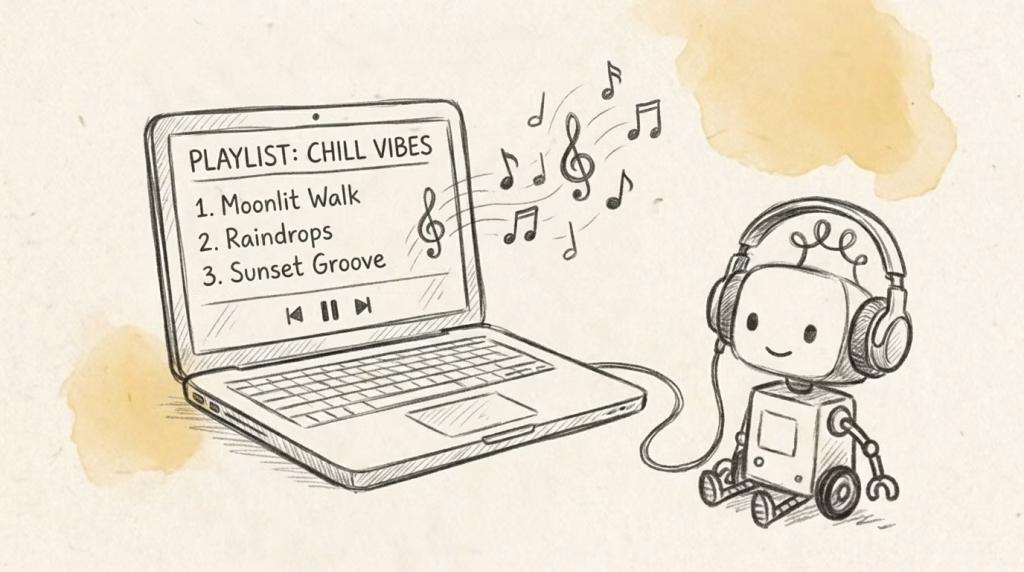
I recently asked the AI I chat with every day, "Can you suggest some songs I might like?"
Even though we rarely talked about music before, it recommended songs that matched my taste and favorite artists remarkably well based on our past conversations.
I recommend asking the AI you interact with most frequently. It serves as a great way to see how well it understands your personal taste and conversation context.
Naturally, I wanted to save this recommended list as a playlist in my primary streaming app and start listening right away.
However, searching for each song individually on Spotify or YouTube Music to build a playlist manually can be time-consuming.
Looking for a way to import them in bulk, I found playlist migration tools like Soundiz and TuneMyMusic.
While both are useful services, I chose TuneMyMusic for its seamless browser-based text importing. In this guide, I'll walk you through how to use TuneMyMusic to take an AI-generated song list, convert it into a playlist, and transfer it directly to your streaming apps like Spotify or YouTube Music.
Overview of the Process
The workflow is straightforward:
- Get tracklist from AI: Share your preferences or theme and request an "Artist - Song Title" list (one track per line).
- Paste into TuneMyMusic: Import the list using the Free Text feature.
- Select music service & import: Choose your streaming app (Spotify, YouTube Music, etc.) and generate the playlist.
- Verify and finalize: Check for any unmatched tracks or order adjustments.
TuneMyMusic is a Web tool that lets you transfer playlists across major streaming services like Spotify, YouTube Music, Apple Music, and Amazon Music (the free plan works well without requiring a credit card).
Beyond migrating existing playlists, its key feature is the ability to directly read text lists (TXT or CSV) to build brand-new playlists.
1. Tell AI Your Preferences and Get a Tracklist
Start by telling AI (such as ChatGPT) about the music you regularly listen to or your current mood.
Rather than simply asking "recommend some songs," providing specific clues yields significantly better recommendations.
Here are a few helpful details to include:
- 2–3 of your favorite artists or bands
- Your current mood or activity (e.g., focus work, relaxation, driving)
- Preferred tempo, vocal presence, or genres to avoid
Even if you cannot define your taste precisely, listing a few artists gives the AI enough context to grasp your preferences.
Request a Specific Theme and Track Flow
Instead of just receiving an unordered list, ask the AI to craft a cohesive theme and track sequence so it feels like a well-curated album.
Make sure to request the single-line text format TuneMyMusic expects right within your prompt.
Please create a 12-track playlist based on my favorite artists like [Artist A] and [Artist B].

Theme: "Chill tracks for deep focus work."
Instead of a random recommendations list, arrange the tracks in a natural flow from start to finish.
Format the final list as "Artist Name - Song Title" with one track per line so I can copy it into TuneMyMusic.
Starting with 10 to 15 tracks is recommended. Having the AI generate a slightly broader list and trimming it down manually works best.
Verify the Text Format
Ensure that the text from AI follows a one-line-per-track format:
Artist A - Song Title 1
Artist A - Song Title 2
Artist B - Song Title 3
Artist C - Song Title 4
Artist D - Song Title 5
Keeping the "Artist Name - Song Title" format enables TuneMyMusic to match each track automatically against your target streaming service's database (for localized music, asking AI to output official localized names improves matching accuracy).
Adding album names improves accuracy for common song titles. For longer lists, you can also ask for CSV output and upload the file directly.
artist,title
Artist A,Song Title 1
Artist B,Song Title 2
2. Paste the List into TuneMyMusic and Select Your App
Once your text list is ready, import it through TuneMyMusic (interface details as of July 2026):
- Visit TuneMyMusic Official Website and click "Let's Start".
- Select "Free Text" as the Source.
- Paste the AI-generated "Artist - Title" list into the text area.
- Run the track search and verify the recognized songs.
- Select your Destination music app (Spotify, YouTube Music, Apple Music, etc.).
- Log in to your destination account and start the transfer.
Skipping manual searches saves significant time—a 10 to 15 track playlist completes in seconds.
3. Check for Unmatched Tracks and Adjust
While TuneMyMusic's auto-matching is reliable, slight title variations or regional licensing can occasionally result in missed or mismatched tracks. Check these points after transfer:
- Check for missing tracks
If a track fails to match, search for it manually in your music app and add it. - Check for mismatches & AI hallucinations
Ensure tracks were not replaced by alternate versions. Occasionally, AI may hallucinate a non-existent track title; if you spot an unfamiliar song, verify it manually. - Check track order
Verify that the playlist sequence matches your intended flow.
If the track order changes on desktop apps like Spotify, switch the sorting order to "Custom" and drag tracks into place.
While minor manual adjustments may be necessary, it saves a substantial amount of effort compared to adding every song manually.
Smart Links for Easy Sharing Across Apps
When sharing playlists on blogs or social media, linking only to Spotify leaves out listeners using Apple Music or YouTube Music.
TuneMyMusic's Share feature creates a universal link that allows listeners to open the playlist in their preferred streaming app.
Including multi-platform smart links ensures anyone can listen, regardless of their preferred streaming service.
Summary: Enjoying AI-Curated Songs in Your Everyday Library
Having an AI you chat with casually accurately catch your music taste is a surprisingly rewarding experience.
Instead of letting those AI recommendations remain as plain text in a chat window, TuneMyMusic allows you to convert them into active streaming playlists.
Whenever you receive great music suggestions from AI, use this workflow to bring them directly into your everyday music library.
Moving forward, I plan to publish AI-curated playlists created with this method as an ongoing series titled "AI Compilation Albums". Stay tuned!